Stoneridge Tachograph Pairing
Stoneridge pairing — our view
Vehicle unit download was tested with Stoneridge version 2626. The minimum supported version has not yet been confirmed. Version 1619 is known for Bluetooth driver card reading. Vehicle unit download support for version 1619 has not been confirmed.
Driver card downloads via Bluetooth are unavailable during multi-manning (with two drivers). When two driver cards are inserted in the tachograph, Stoneridge tachographs with software version 2626 or earlier do not provide data from either card via Bluetooth. Downloading works with one driver card, and with a driver card and a company card inserted together. We have reported this fault to the manufacturer.
During multi-manning, to download with the vehicle stationary, the other driver must temporarily remove their card; alternatively, use a USB card reader or the front download device (Front Device).
What to expect during use: Bluetooth communication occasionally freezes — this also occurs with tachographs running the latest software version 2626.
This fault can only be resolved by disconnecting the vehicle’s power supply. This factory defect does not affect the tachograph’s other functions.
If disconnecting the power supply is inconvenient for you, we recommend using a USB card reader or the Front Device instead.
What to know about disconnecting the vehicle’s power supply →Pairing the Stoneridge tachograph differs from VDO devices. Below we describe the steps for Bluetooth pairing with a Stoneridge tachograph.
Prerequisites
- ✓The driver card must be inserted in the tachograph
- ✓The tachograph's Bluetooth function must be turned on
- ✓The phone's Bluetooth must be enabled
- ✓The TachoData application must be open on the phone
Checking whether the tachograph supports Bluetooth
Checking the tachograph software version in the app
The app shows the tachograph firmware version with a green check mark or a red cross. The first working version for Bluetooth driver card reading is 4141 for VDO and 1619 for Stoneridge. The separate guide explains the requirements for downloading the vehicle unit.
- Green: the app considers the software version suitable for Bluetooth downloads.
- Red: the version is unsuitable and Bluetooth downloads are unreliable. Follow the version requirement shown in the warning and have the tachograph software updated at a workshop.
What to expect during use: Bluetooth communication occasionally freezes — this also occurs with tachographs running the latest software version 2626.
This fault can only be resolved by disconnecting the vehicle’s power supply. This factory defect does not affect the tachograph’s other functions.
What to know about disconnecting the vehicle’s power supply →Stoneridge tachographs support Bluetooth from the GEN2 v2 generation onwards. You can check the generation of your device as follows:
- Print a 24-hour or technical list from the tachograph
- At the bottom of the printout, locate the manufacturer header block (Stoneridge Electronics · Örebro)
- Below the manufacturer name you will see the part number, year, and the generation marker (e.g.
GEN2 v2) - If the marker is "GEN2 v2 · V 1619 · 21/12/2023" or newer → the tachograph is Bluetooth-capable and can be paired with the app
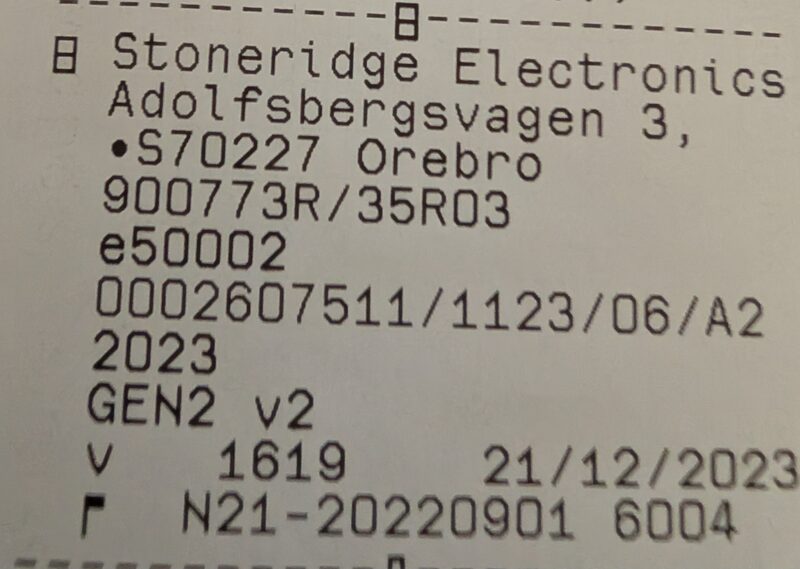
Older Stoneridge tachographs
If the marker is only "GEN2" or "GEN1" — the tachograph does not support Bluetooth communication. In that case, use the Front Device for data download.
Important!
The pairing always applies to the same arrangement of the same driver cards — when driving solo, only to your own card. If a different card is inserted in the tachograph, or if your card is moved to a different slot, the previous pairing must be deleted on both the tachograph and the phone.
The TachoData and TachoAI app automatically detect nearby tachographs that can be paired, as well as those already paired.
Pairing steps on the Stoneridge tachograph
- Enter the tachograph's main menu
- Navigate to the Bluetooth settings menu item
- Select the "Pair new device" option
- The tachograph will search for available devices
- Select your phone from the list
- Confirm the pairing code on both devices
- Wait until the pairing is successfully completed
Warning!
Similar to VDO tachographs, the pairing is linked to the tachograph AND the driver cards inserted in it. If the cards change, the pairing must be deleted and re-established!
Removing the pairing
If the pairing is not working or the driver cards have changed:
1. Remove from the phone
- Open the phone's Settings menu
- Go to the Bluetooth section
- Find the Stoneridge tachograph name
- Select "Forget device"
2. Remove from the tachograph
- Enter the tachograph's Bluetooth settings menu
- Find the phone name in the list of paired devices
- Select the delete option
Tip
The pairing must be removed on both devices before re-pairing.
If the download doesn't start after pairing
If downloading does not start after pairing, make sure the same card(s) are in the tachograph as when pairing took place. If the Stoneridge Bluetooth freeze described above occurs, the vehicle’s power supply must be disconnected; switching the ignition off and on is not the same thing. See the “Stoneridge pairing — our view” block above and the power-disconnection guide linked there. For other download faults, see Troubleshooting → “Tachograph not responding”.
Tachograph download in TachoData+AI
For vehicle unit download, use TachoData+AI and pair with the company card already in the tachograph. The separate guide describes the download settings and known limitations.