Front Device Usage
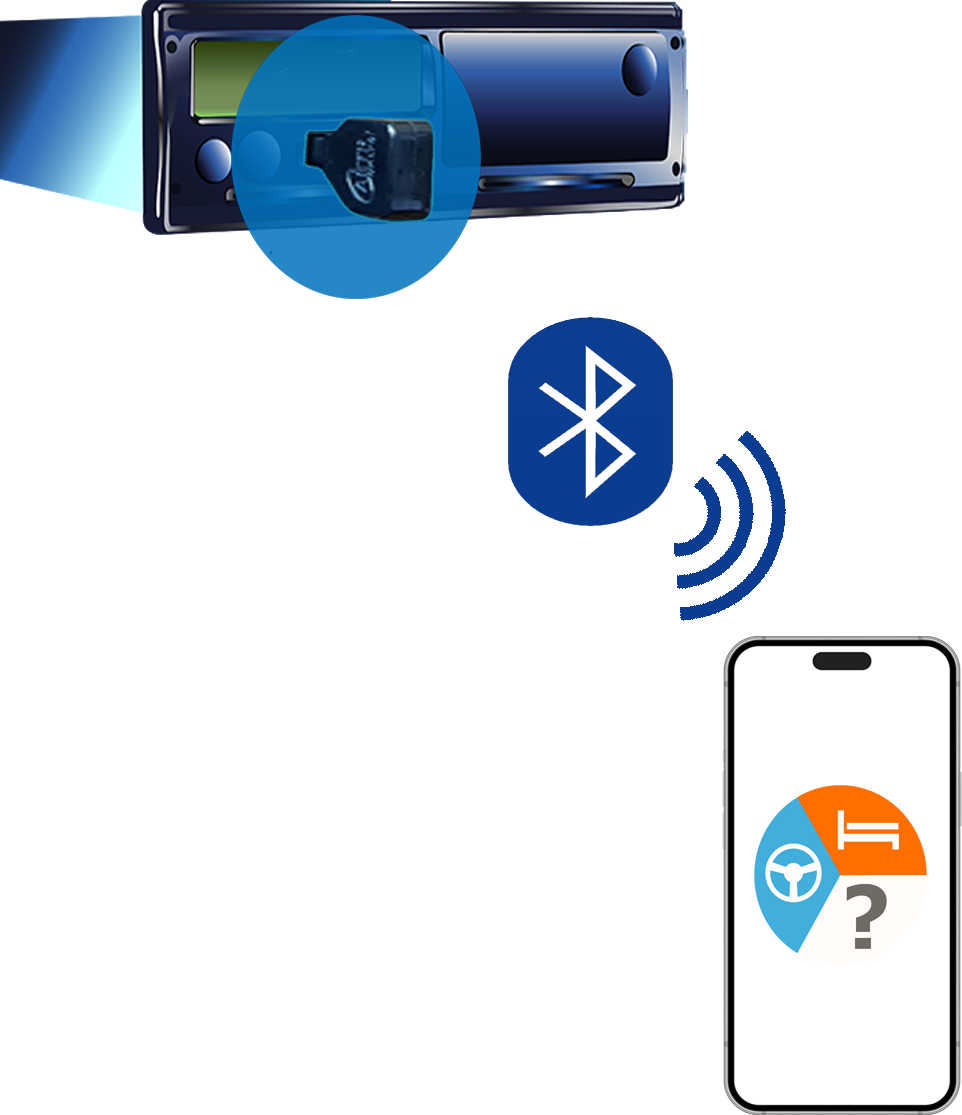
The Front Download Unit (Front Device) is a Bluetooth-enabled device that can be inserted into the tachograph front panel, allowing you to download driver card data while driving, without interrupting the tachograph operation.
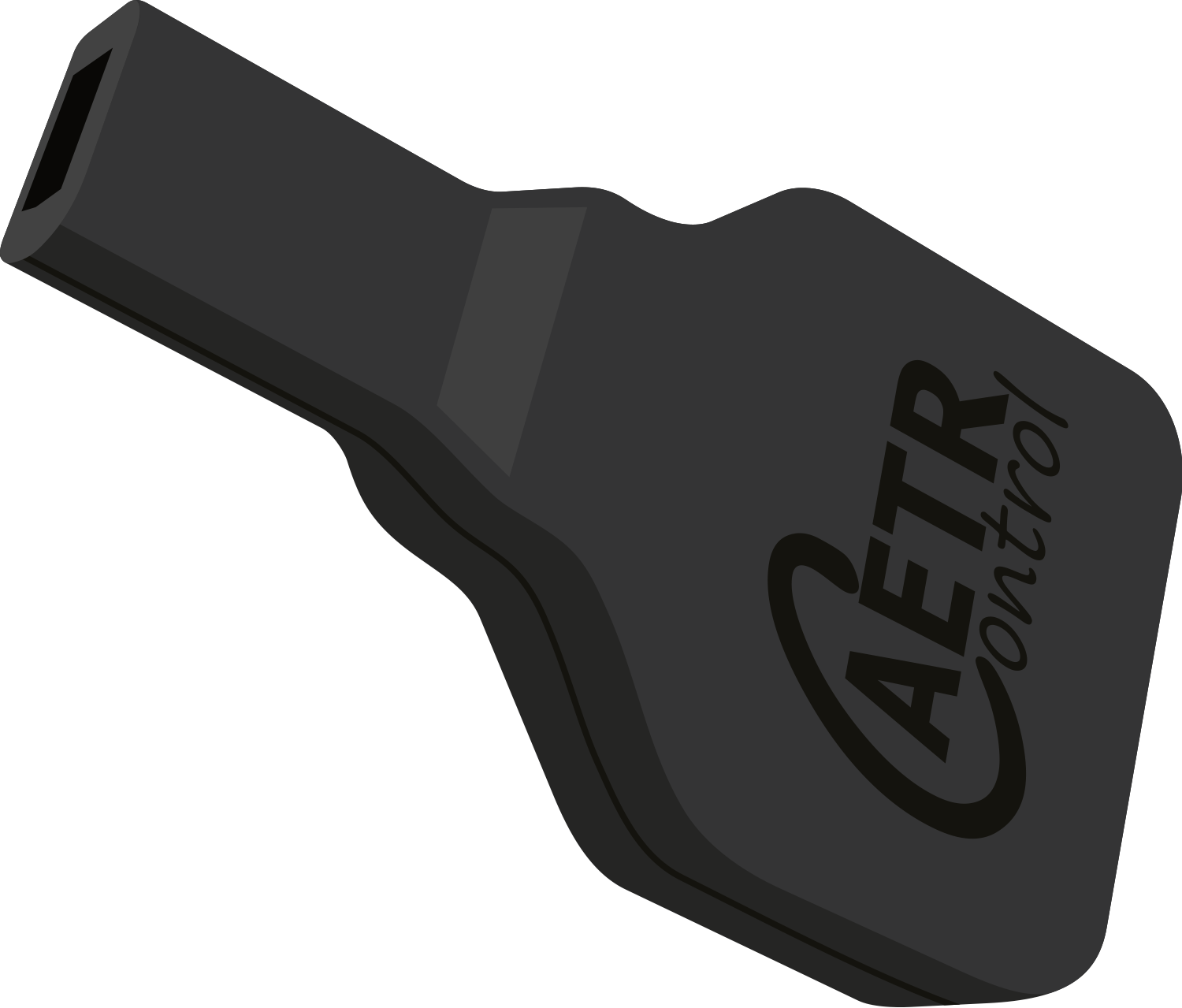
TachoMI / AETRControl Front Download Unit
The TachoData application only supports the TachoMI / AETRControl front download unit. The application is not compatible with front download units from other manufacturers (VDO DLK, Stoneridge, etc.).
The device fits into the card reader slot on the tachograph front panel and communicates with the phone via Bluetooth.
Note
The device is also suitable for tachograph download with other TachoMI subscription apps.
Important
The TachoData application only works with the TachoMI / AETRControl front download unit. Other types of front download units (e.g. VDO DLK Pro S, VDO DLK Smart, Stoneridge Exagon) are not compatible with the application.
Advantages of the Front Download Unit
- Can be used while driving — card data can be downloaded without the driver stopping or removing the card
- Fast download — card data transfer can be completed in just a few seconds
- Bluetooth connection — wireless communication between the phone and the device
- Automatic upload — downloaded data is automatically uploaded to the server
- Unlimited card reading — during the subscription period, the driver card can be read, uploaded and evaluated an unlimited number of times
- Front device driver software update — the device software can be updated directly from the application
- Two card slot monitoring — driver data from both card slots (slot 0 and slot 1) is displayed
Unlimited usage
During the active subscription period, the driver card can be read, uploaded and evaluated an unlimited number of times. There is no monthly or periodic limit on the number of card downloads.
Automatic device management
The TachoData application automatically manages the front download unit. No manual setup or device search is needed — the application automatically detects the connected device:
- Insert the front download unit into the tachograph front panel
- Open the TachoData application
- The application automatically detects the front download unit available via Bluetooth, and if it is not yet paired, starts the pairing animation
- Select the "Start pairing" button
- Confirm the Bluetooth pairing on the phone
- After successful pairing, the application automatically navigates to the download screen
Already paired device
If the front download unit was previously paired with the phone, the application navigates directly to the download screen after detection — the pairing steps are skipped, and the download start animation begins automatically.
Bluetooth required
Bluetooth must be turned on throughout the entire process. If Bluetooth is turned off, the application automatically navigates to the USB card reader screen.
Removing pairing
Removing the pairing is done from the phone's Bluetooth settings menu. Find the front download unit in the list of paired devices and select the "Forget" or "Remove pairing" option.
Card download process
Start the download with the "Start card reading" button. The application checks whether a card is inserted in the tachograph — if not, you will receive a warning. After starting, the process runs automatically:
Reading the card
The front download unit reads the card data blocks. The progress bar shows the progress and also displays the number of downloaded blocks.
Transferring data to the phone
The read memory is transferred to the phone via Bluetooth. This step can be tracked with a vertical progress indicator.
Upload and processing
The downloaded .ddd file is automatically uploaded to the server for processing. You will receive a notification upon successful download.
Data displayed during download
The following information from the tachograph is displayed on the download screen:
| Data | Description |
|---|---|
| License plate | The vehicle license plate registered in the tachograph |
| Driver ID (Slot 0) | The card number of the driver in card slot 1 |
| Driver name (Slot 0) | The name of the driver in card slot 1 |
| Driver ID (Slot 1) | The card number of the driver in card slot 2 (if present) |
| Driver name (Slot 1) | The name of the driver in card slot 2 (if present) |
Troubleshooting
| Error | Solution |
|---|---|
| No card in the tachograph | Insert the driver card into the tachograph card reader |
| Bluetooth turned off | Turn on Bluetooth in the phone settings. The application displays a Bluetooth disabled icon when Bluetooth is turned off |
| Timeout (60 sec) | If no data is received within 60 seconds, the application returns to the home screen. Try the download again |
| USB card reader connected | If a USB card reader is connected, the application automatically switches to USB download mode |
Communication error with the tachograph
If the application reports an error after pairing and cannot read the card data, follow these steps:
Check the cards
Make sure the same cards are inserted in the tachograph as at the time of pairing. If any card has changed (even in just one card slot), the pairing must be redone:
- Remove the pairing on the phone (Bluetooth settings → forget device)
- Remove the pairing on the tachograph as well
- Pair the devices again
Power cycling the tachograph
If re-pairing does not help, a communication error may have occurred on the tachograph side. This error does not affect the tachograph's other functions (e.g. recording driving time), but can only be resolved by power cycling:
- Bring the vehicle to a standstill
- Turn off the main switch for at least 30 seconds, then turn it back on
- If the vehicle has no main switch, remove the affected fuse for 30 seconds, then reinsert it
Warning
Only perform power cycling when the vehicle is stationary! Power cycling the tachograph while driving is prohibited and dangerous.
Front device driver software update
The front download unit driver software can be updated directly through the TachoData application. The application automatically notifies you when a new version is available. The update shows progress as a percentage.
Tip
Do not remove the front download unit from the tachograph during the update, and do not turn off Bluetooth. If the update is interrupted, the device may be damaged.
You can order this device directly from the official TachoMI / Autóvéd webshop:
View in the webshop